iOS shortcut
Apple users can install a shortcut that lets you quickly add things to Things To Have via the share sheet. The shortcut takes whatever page you are looking at and opens the add form with the name and link already filled in.
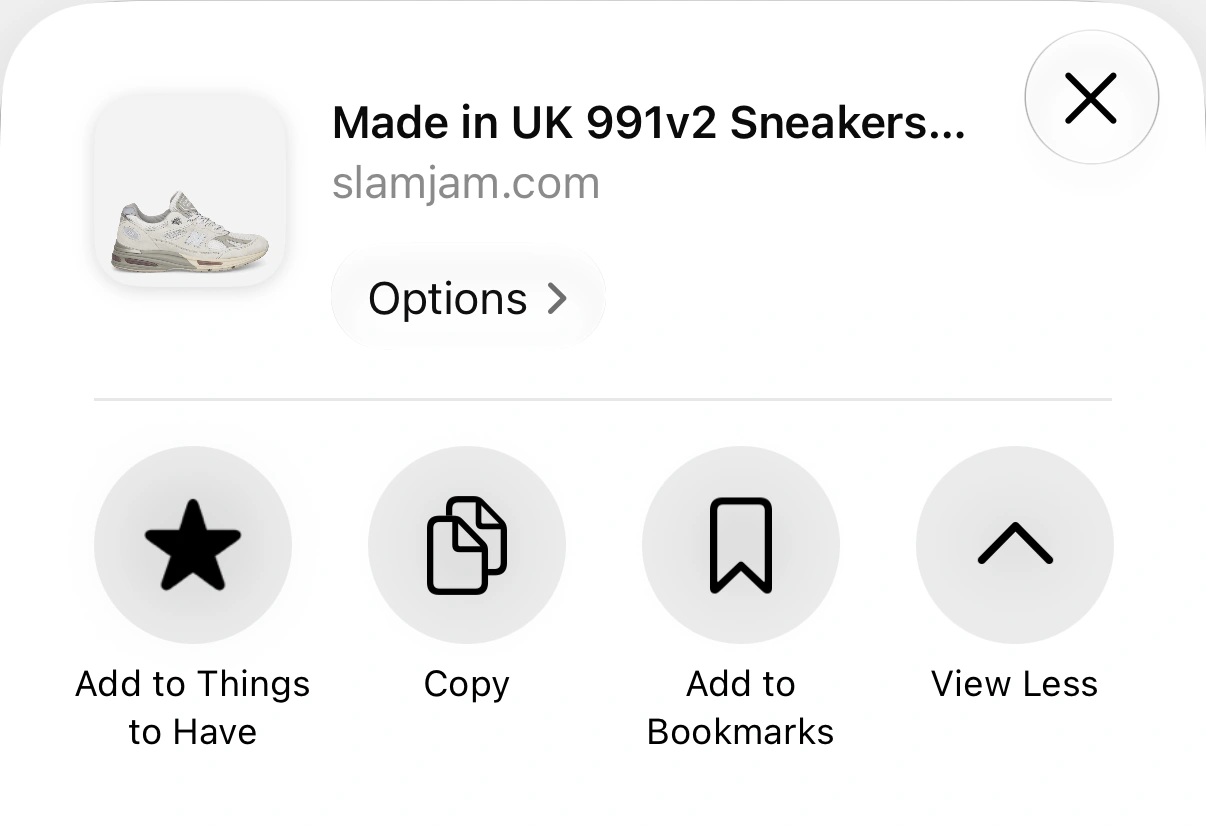
The shortcut, sitting in the share sheet next to Copy
Install it
- Open the shortcut on your iPhone or iPad.
- Tap Add Shortcut.
It works in any app, not only Safari. It will try to catch the name and link from the shared data.
Move it to the top
A freshly installed shortcut lands at the bottom of the share sheet, under everything else. It is worth a minute to move it up, because this is the one step that decides whether you actually use it.
- On any page, tap Share.
- Scroll the list of actions to the very bottom and tap Edit Actions.
- Find Add to Things to Have under Shortcuts, and tap the green + beside it. It moves up into Favourites.
- Drag it by the handle on the right to the top of that list.
- Tap Done.
From now on it is the first thing you see when you share a page.
Use it
On a product page, tap Share → Add to Things to Have. The add form opens with the name or link filled in, and we will fetch suggestions for you. Don't forget to Save.
Build your own instead
If you would rather assemble it yourself, the shortcut is three actions: Receive URLs from the share sheet, URL Encode the shared address, then Open URLs with this in front of it:
https://thingstohave.app/add?v=1&via=shortcut&url=The URL Encode step is the one worth not skipping — without it a product address carrying its own query string is cut off at the first &.
On a computer
The share sheet is a phone thing. On a desktop browser, use the quick add bookmarklet instead.